
Wednesday, June 29, 2011

WCF interview questions - What are 3 ways of implementing WCF(Windows Communication Foundation) concurrency?

Figure:
Single: - A single request has access to the WCF service object at a given moment of time. So only one request will be processed at any given moment of time. The other requests have to wait until the request processed by the WCF service is not completed.Multiple: - In this scenario multiple requests can be handled by the WCF service object at any given moment of time. In other words request are processed at the same time by spawning multiple threads on the WCFserver object. So you have great a throughput here but you need to ensure concurrency issues related to WCF server objects.
Reentrant: - A single request thread has access to the WCF service object, but the thread can exit the WCF service to call another WCF service or can also call WCF client through callback and reenter without deadlock.
You can also view video on WCF one way contract as follows: -
SilverLight interview questions - Three ways applying layouts in SilverLight?
There are three ways provided by Silverlight for layout management is Canvas, Grid and Stack panel. Each of these methodologies fit into different situations as per layout needs.
Canvas – Absolute Positioning
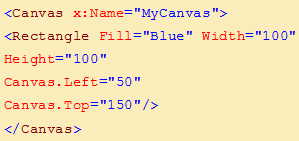
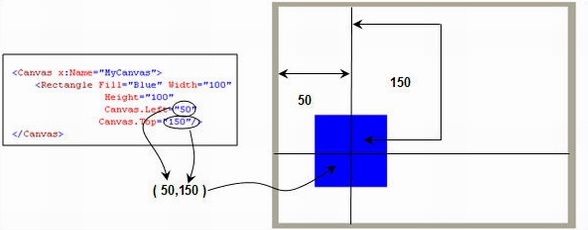
Canvas is the simplest methodology for layout management. It supports absolute positioning using ‘X’ and ‘Y’ coordinates. ‘Canvas.Left’ helps to specify the X co-ordinate while ‘Canvas.Top’ helps to provide the ‘Y’ coordinates.Below is a simple code snippet which shows how a rectangle object is positioned using ‘Canvas’ on co-ordinates (50,150).
Below is how the display looks like. When you the run the code, the XAML viewer will position the rectangle object on absolute ‘X” and ‘Y’ coordinates.
Grid – Table layout
Grid layout helps you position your controls using rows and columns. It’s very similar to table defined in HTML.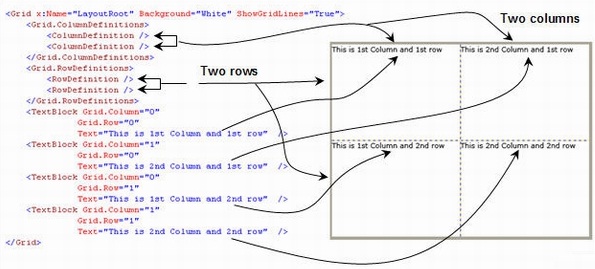
Above is a simple table with two columns and two rows defined using Grid. We have shown how the table display looks like. Using the Grid.ColumnDefinition, we have defined two columns and using Grid.RowDefinition, we have defined two rows. We have then created 4 text blocks which are then specified in each section using Grid.Column and Grid.Row. For instance, to place in the first column, we need specify the Grid.Column as 0 and Grid.Row as 0. We have followed the same pattern for everyone and you can see that all the textblocks are placed in the
appropriate sections.
appropriate sections.
Stack – One Above the Other
As the name says, so the behavior. Stack allows you to arrange your UI elements vertically or horizontally.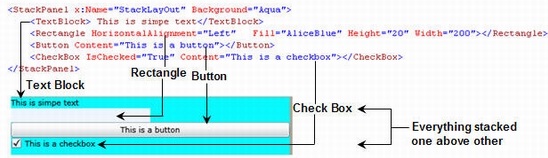
For instance, above are 4 elements which are arranged in a stack panel element. You can see how the stack aligns / stacks the elements one above other. You can also stack the UI elements horizontally or vertically depending on the nature of your layout.
Following is the video which demonstrates simple animation in SilverLight:
Subscribe to:
Posts (Atom)